Seeing a 401, 403 or 404 error? It means the Lightbox asked your server for the EXIF data of your images and your server refused to answer. Go to Meow Lightbox → Diagnostics, click Diagnose, and follow what it tells you. It is made exactly for this.
The Diagnostics Tab
By far the most common issue with Meow Lightbox is your server blocking the request the lightbox makes to read the EXIF of your images. Instead of asking you to guess, the plugin can now check everything for you.
Go to Meow Lightbox → Diagnostics and click Diagnose. In a few seconds it will run a full check-up of your site: your permalinks, whether your server can talk to itself, whether the WordPress REST API answers, whether the lightbox endpoints are reachable by a normal visitor (and not only by you, logged in as an admin), whether a caching plugin could be serving stale pages, and whether a security or membership plugin is blocking the requests.
The tab then gives you three things:
- A conclusion: the single most likely cause, written in plain words.
- Solutions: short, concrete steps to fix it. Some of them come with a button that applies the fix for you (for example, Disable Dynamic Fetch).
- A “Copy report for support” button: one click, and everything we need is in your clipboard.
Just do what the Diagnostics tab tells you. In most cases that is enough, and you will not need to read the rest of this page.
Still stuck after following the solutions? Click Copy report for support and send it to us through the contact form. With that report we can usually tell you what is going on right away. Don’t waste hours on it, that is what support is for.
If the problem happens on your live site, the lightbox will also show a small banner about it, but only to logged-in administrators, never to your visitors. That banner links straight to the Diagnostics tab. The details are always written to your browser console as well.
Lightbox Rendering
When your page loads, all the static media content (within your chosen selector) is automatically marked as ready to open in the lightbox, so you can click on any image right away to view it.
Then there is dynamic content: images that appear after the page has loaded. Think of a slider rotating to the next slide, an infinite-scroll gallery loading more photos, an AJAX filter refreshing a grid, or a tab revealing its content.
Good news: you no longer have to configure anything for this. Meow Lightbox now watches your page continuously and notices new images the moment they appear, then adds them to the lightbox by itself. It used to work with a timer, which meant you had to guess how long to wait, that guessing game is over.
So what is the “Dynamic Rendering Delay” for now?
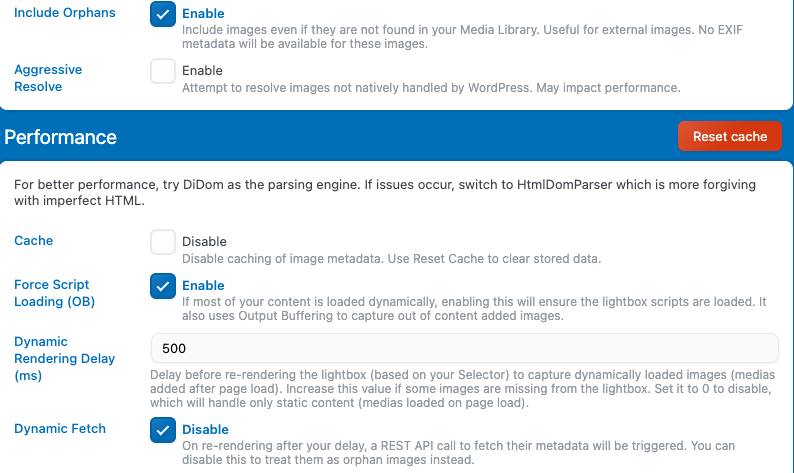
You will still find Settings → Advanced → Dynamic Rendering Delay (ms), but its meaning has changed. It is no longer “how long to wait before looking for images”. It is now simply a short breathing pause: when new images appear, the lightbox waits this many milliseconds before rebuilding, so that a batch of twenty images arriving at once causes one rebuild instead of twenty.
The default (300 ms) is fine for almost everyone. Leave it alone. Two exceptions:
- If your images arrive in several waves and some of them are missed, increase it a little (for example 600 or 1000).
- If your site is fully static and you want the lightbox to stop watching the page altogether, set it to 0. Only the images present when the page loads will be handled.
Don’t worry about being interrupted: if you are viewing a photo when new images show up, the lightbox waits until you close it before rebuilding. You will never be kicked out of the image you are looking at.
EXIF Fetching
When new images are picked up, the lightbox sends a request to your server. It basically asks: “give me the EXIF data for these media files”, so it can display that information (camera, lens, aperture, and so on) inside the lightbox.
This is the request that fails when you see a 401 / 403 / 404. You have two ways to deal with it.
1. Let your WordPress REST API answer visitors ( Recommended )
This is the proper fix, and it keeps all your metadata working. The Diagnostics tab will tell you precisely what is blocking it. Very often it is a security, membership, firewall or caching plugin that only allows logged-in users to use the REST API. If you are not sure how to change that, your hosting support or the support of that plugin can do it for you.
To whitelist Meow Lightbox in another plugin (cache, optimization, security, membership), add an exception for the “meow-lightbox/v1” namespace.
2. Disable dynamic fetch
If you cannot unblock the REST API, you can tell the lightbox to stop sending those requests. Images loaded after the page will still open in the lightbox, they will simply come without their EXIF data.
Go to Settings → Advanced and check the Dynamic Fetch → Disable option. The Diagnostics tab also offers this as a one-click action when it detects that your REST API is blocked.
When used with compatible dynamic plugins, like Meow Gallery, you don’t even lose the metadata: the gallery provides it on its side, without any request.
Use Caching
If you use Dynamic Fetch, you may also want to enable Caching.
Caching remembers whether the dynamic fetch has already been performed for a specific page on your site. If it has, the lightbox will load the cached data directly instead of sending a new request to your server every time.
The same applies to EXIF data:
- If the EXIF data for a media file has already been parsed, the cached value will be reused
- Instead of reparsing the EXIF information every time the lightbox opens
Using caching helps:
- Speed up EXIF parsing
- Reduce the number of REST requests sent to your server
- Improve overall lightbox performance
If you update a page, the cache should normally reset automatically. However, if the EXIF data of an image changes separately, you may want to manually clear the cache (Settings → Advanced → Cache → Reset) to ensure the updated information is displayed correctly.
For Developers
Manually Render Dynamic Content
Since the lightbox watches the page on its own, you rarely need these functions anymore. They are still available, and remain useful when you want full control over when the lightbox rebuilds, or when the automatic watcher has been turned off (rendering delay set to 0):
- Loading images dynamically via AJAX
- Implementing infinite scroll galleries (Works out of the box with Meow Galleries)
- Adding images to the page after initial load
- Working with single-page applications (SPAs)
- Integrating with third-party gallery plugins
These functions are exposed on the global `window` object and can be called from anywhere in your JavaScript code.
renderMeowLightbox
This function completely re-renders the Meow Lightbox. It’s the main function you call after dynamically modifying your page’s images. This ensure all new images on the page are part of the lightbox.
// Re-renders the Meow Lightbox, processing any queued images and reinitializing the lightbox interface.
window.renderMeowLightbox()
This does not add the media to the lightbox, this just re-create the lightbox with the current available data. As the <img> elements do not contain this data, you need to query it from your media entry directly. To do that automatically, you can enqueue this media in the lightbox before re rendering it, using the addToMeowLightboxQueue function.
addToMeowLightboxQueue
When you add images to your page dynamically (after the initial page load), they will not automatically irrigate the lightbox with their Media Entry data (EXIF). This function queues these images for processing before re rendering the lightbox.
// Adds a dynamically loaded image element to the processing queue so it can be included in the lightbox.
window.addToMeowLightboxQueue(imgElement)
What this function does:
- Validates that the provided element is a valid `<img>` HTML element
- Extracts the image’s `src` attribute
- Adds the image to an internal queue for batch processing
- The queue will be processed the next time `renderMeowLightbox()` is called
- The parameter must be an `HTMLElement` instance
- The element must be an `<img>` tag (case-insensitive)
- The image must have a valid `src` attribute
If an invalid element is passed or if the image has no `src` attribute, the function logs an error to the console and returns early.
// After loading an image via AJAX
const newImage = document.createElement('img');
newImage.src = 'https://example.com/dynamic-image.jpg';
document.querySelector('.gallery').appendChild(newImage);

// Add it to the lightbox queue
window.addToMeowLightboxQueue(newImage);

// Re-render the lightbox to process the queue
window.renderMeowLightbox();


// ---

// ❌ WRONG - Passing a URL string instead of an element
window.addToMeowLightboxQueue('https://example.com/image.jpg');

// ❌ WRONG - Passing a jQuery object
window.addToMeowLightboxQueue($('img')[0]); // Use [0] or .get(0) to get the DOM element

// ✅ CORRECT - Passing a DOM element
const imgElement = document.querySelector('img.my-image');
window.addToMeowLightboxQueue(imgElement);
renderMeowLightboxWithSelector
This function allows you to automatically queue and render all media elements (like <img>) from a specific selector, without needing to call both addToMeowLightboxQueue() and renderMeowLightbox() manually.
Example:
window.renderMeowLightboxWithSelector('.mgl-gallery')This command will find all <img> elements inside the container with the class .mgl-gallery, queue them, and then render the lightbox automatically.
Controlling the Watcher
The automatic watcher can be started and stopped from your own code. This is handy if you are about to inject a very large number of elements and would rather rebuild the lightbox once, yourself, at the end.
// Stop watching the page for new images
window.stopMeowLightboxObserver();

// ... your heavy DOM work here ...

// Start watching again (delay in ms, defaults to your setting)
window.startMeowLightboxObserver(300);
A couple of details worth knowing: mutations happening inside the lightbox itself are ignored (otherwise it would react to its own DOM), and images whose URL the server could not resolve are remembered so they are never requested twice — which keeps sliders from firing a request on every tick.
You can verify that everything is working by enabling Debug Logs in Settings → Advanced and checking your browser console. You should see entries like:
ℹ️ Image already has mwl_data: 2791
🎞️ Rendering Meow Lightbox with delay: 300
🚚 Sending request to get the new mwl_data for [{…}]
These logs confirm that your images are being detected correctly and that the lightbox is rendering as expected.