Instead of selecting your media files one by one, you can use dynamic galleries that automatically load images based on specific parameters.
Dynamic Mode
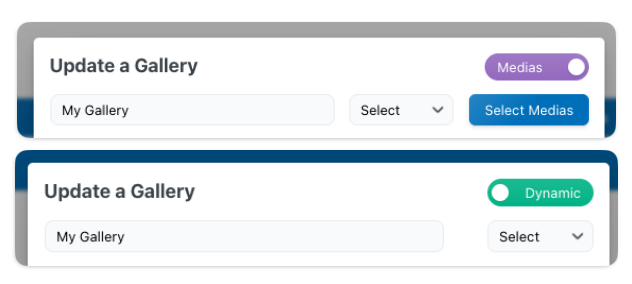
In the Gallery Manager, you can switch your gallery type from “Media” to “Dynamic.”
Once selected, you’ll be able to choose from different dynamic sources, each allowing you to automatically populate your gallery based on specific criteria. These sources are explained below.
Tags
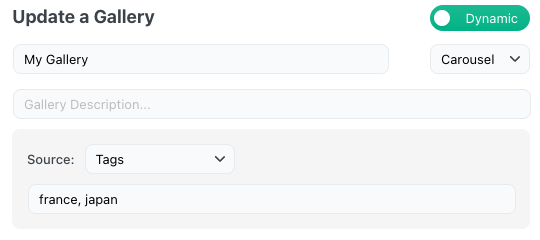
You can set your source to Tags, and the gallery will automatically fetch all media that have at least one of the specified tags.
In the example below, all images tagged with “france” or “japan” will be automatically loaded into the gallery.
By default, WordPress does not use taxonomies for attachments. If you are not using a plugin and do not have a custom taxonomy registered, you will need to add one before you can assign tags to your media files.
By default, the most common WordPress tag taxonomies are used: ‘post_tag’, ‘media_tag’, ‘attachment_tag’ and ‘attachment_category’.
If you’d like to use tags from a custom taxonomy or a third-party plugin, you can use the following filter:
mgl_tags_taxonomies( $taxonomies_to_try )$taxonomies_to_try should be an array of taxonomies that the gallery will check when fetching tagged media.
You can register tags for attachments using a simple snippet, as shown below:
function register_attachment_tags() {
    register_taxonomy(
        'attachment_tag',
        'attachment',
        array(
            'label'        => __( 'Media Tags' ),
            'rewrite'      => array( 'slug' => 'media-tag' ),
            'hierarchical' => false,
        )
    );
}
add_action( 'init', 'register_attachment_tags' );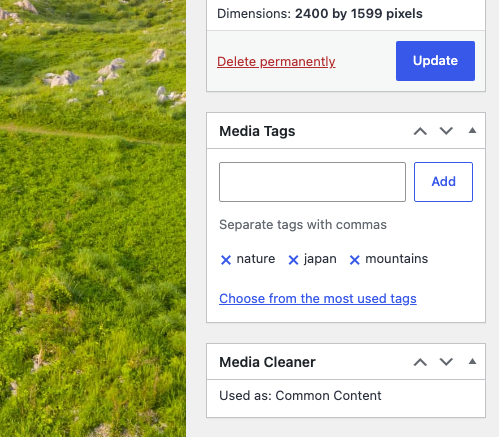
Posts
You can then select specific posts or choose your X latest posts. For each of these posts, the featured image will be used.
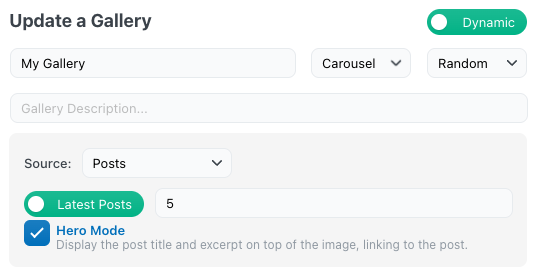
With the Carousel layout, you can use Hero mode to overlay the post title and excerpt on the media, and users can click it to go directly to the post.
You can of course use it directly through a shortcode if you prefer to have your own logic:
[gallery layout="carousel" latest_posts="3" hero="true"]
Adobe Lightroom
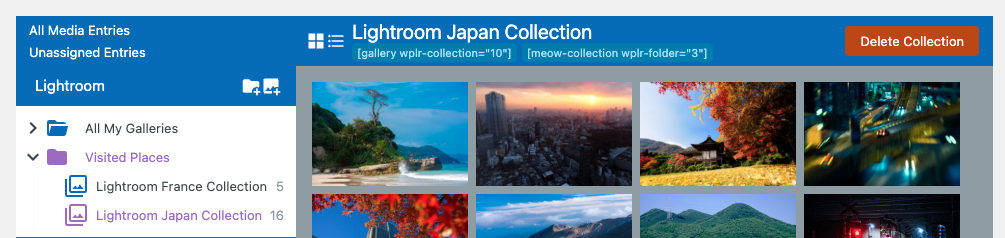
You can use media directly from your Lightroom collections if you’re using WP/LR Sync (Photo Engine), since this plugin is directly compatible with Meow Gallery. Each of your Lightroom collections will have an ID that you can reference in a Collection or Gallery to display on your page. When your collection is updated in Lightroom and synced with WordPress, your gallery on your posts will automatically be updated with that content as well!
Real Media Library
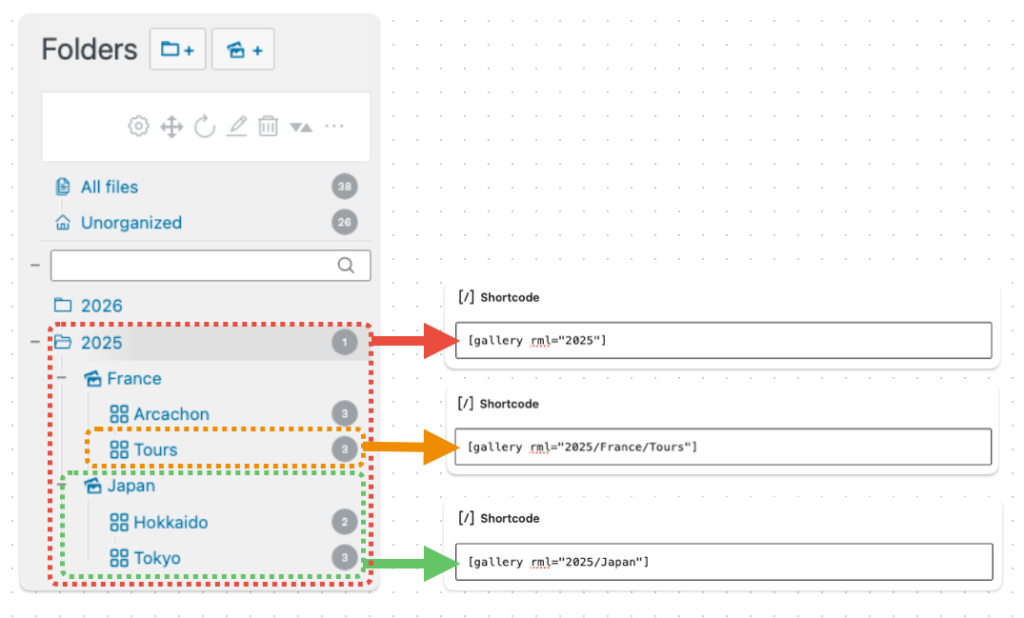
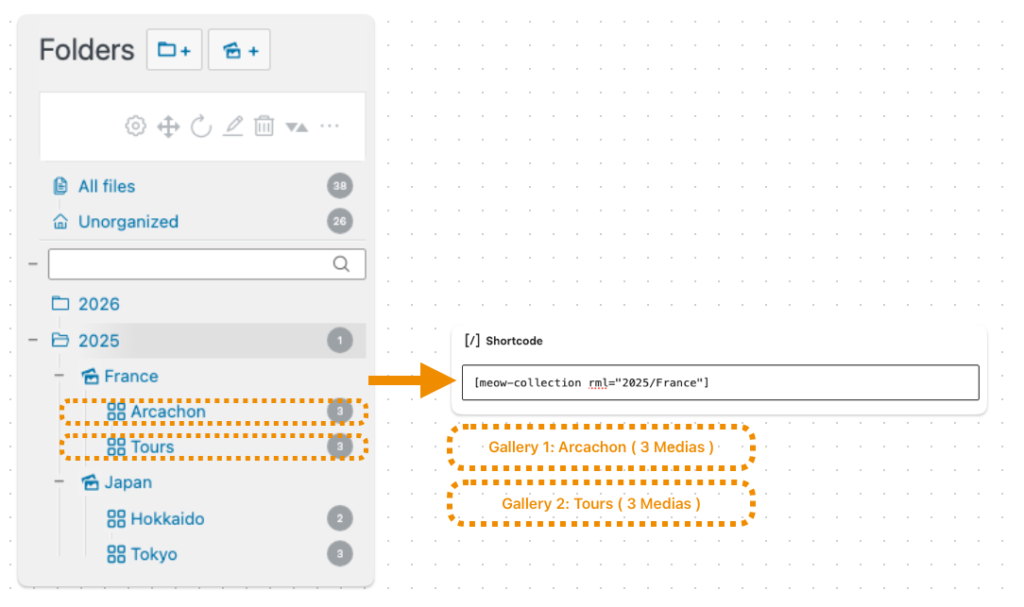
If you’re using Real Media Library, Meow Gallery can automatically convert your folder, collection, or gallery structure into WordPress galleries.
You can simply reference the path of a folder in a gallery shortcode, and Meow Gallery will automatically include all of the media contained in that folder and its chilren.
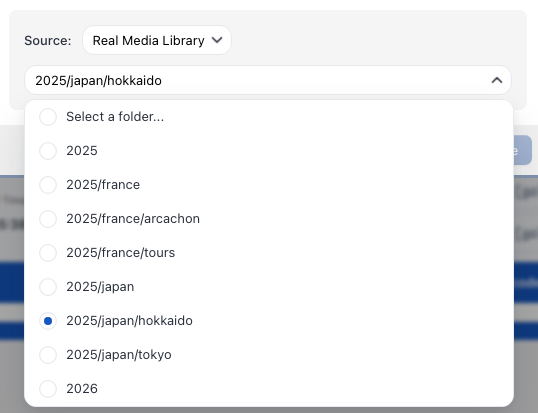
You don’t have to enter the folder path manually. You can also use the Gallery Manager and select the Dynamic gallery type with Real Media Library, which will automatically configure everything for you.
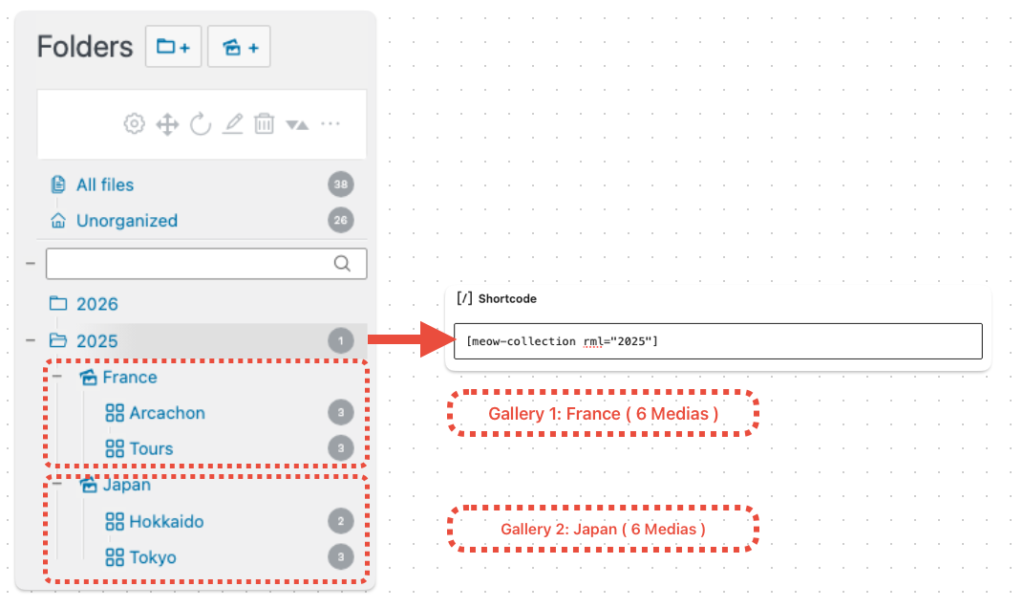
This is also compatible with Meow Collections.
If you provide the path to a folder, each subcollection will automatically become a gallery within the collection.
If you provide the path to a collection, each of its gallery data folders will automatically become a gallery within that collection.
Posts attachments
Meow Gallery can automatically create a gallery based on the media attached to the current post.
You can enable this behavior either by using the attachments parameter in the shortcode or by enabling it directly in the block settings.
[gallery attachments="true"]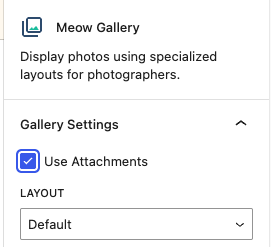
You can enable this by default on empty galleries by going to the plugin settings and turning on the “Use Attachments on Empty” option.

Shortcode Override
If you have some technical knowledge, you can do fantastic things by overriding attributes of the gallery. For instance, you can create your own attribute like “keyword”, and your gallery will always show media that match that keyword. You can also add a limit attribute to display only the latest X items you’re interested in.
[gallery keyword="water" limit="4"]



// functions.php or a plugin file
add_filter('shortcode_atts_gallery', function ($out, $pairs, $atts, $shortcode) {
    $keyword = isset($atts['keyword']) ? sanitize_text_field($atts['keyword']) : '';
    $limit   = isset($atts['limit']) ? absint($atts['limit']) : 0; // 0 means no limit

    if ($keyword !== '') {
        $args = [
            'post_type'      => 'attachment',
            'post_status'    => 'inherit',
            'post_mime_type' => 'image',
            's'              => $keyword,
            'fields'         => 'ids',
            'orderby'        => 'date',
            'order'          => 'DESC',
        ];

        if ($limit > 0) {
            $args['posts_per_page'] = $limit;
        } else {
            $args['posts_per_page'] = -1;
        }

        $ids = get_posts($args);

        if (!empty($ids)) {
            $out['ids']     = implode(', ', $ids);
            $out['orderby'] = 'post__in';
        }
    }

    return $out;
}, 10, 4);