If you’re using shortcodes to display your galleries, you can use different parameters to individually modify each gallery instance. Below is a list of available parameters.
Keep in mind that some parameters are not compatible together. For example, you cannot use both id and ids within the same shortcode, as they serve similar purposes and would conflict.
General Parameters
Parameter
Description
meow
Set to "false" to use default WordPress gallery instead
Image size to use (e.g., large, medium, thumbnail)
link
Link behavior: attachment, media, file, or null
captions
Caption display: none or other values
animation
Animation type for images
custom-class
Custom CSS class for the gallery
align
Alignment (adds align{value} class)
Ordering
Parameter
Description
orderby / order_by
Field to order by
order
Sort direction: asc or desc
Order by possible values:
none – No ordering (return as-is)
ids – Sort by post IDs
random – Shuffle images randomly
date – Sort by post creation date
modified – Sort by post modification date
filename – Sort by post title (filename)
title – Sort by post title (same as filename)
menu – Sort by menu order
Posts Mode
Parameter
Description
posts
Comma-separated post IDs (uses featured images)
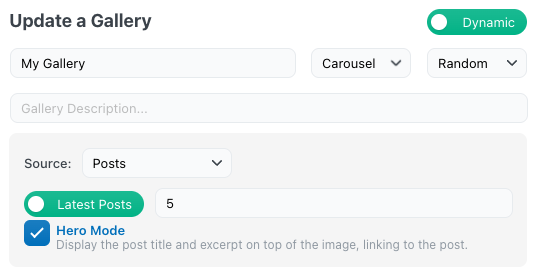
latest_posts
Number of latest posts to fetch
hero
Enable hero display mode for posts
Layout-Specific Parameters
Tiles
Parameter
Description
gutter
Space between tiles
density
Tile density: low, medium, high
Masonry
Parameter
Description
gutter
Space between images
columns
Number of columns
Justified
Parameter
Description
gutter
Space between images
row-height
Target row height in pixels
Square
Parameter
Description
gutter
Space between images
columns
Number of columns
Cascade
Parameter
Description
gutter
Space between images
Horizontal
Parameter
Description
gutter
Space between images
image_height
Image height in pixels
hide_scrollbar
Hide the scrollbar
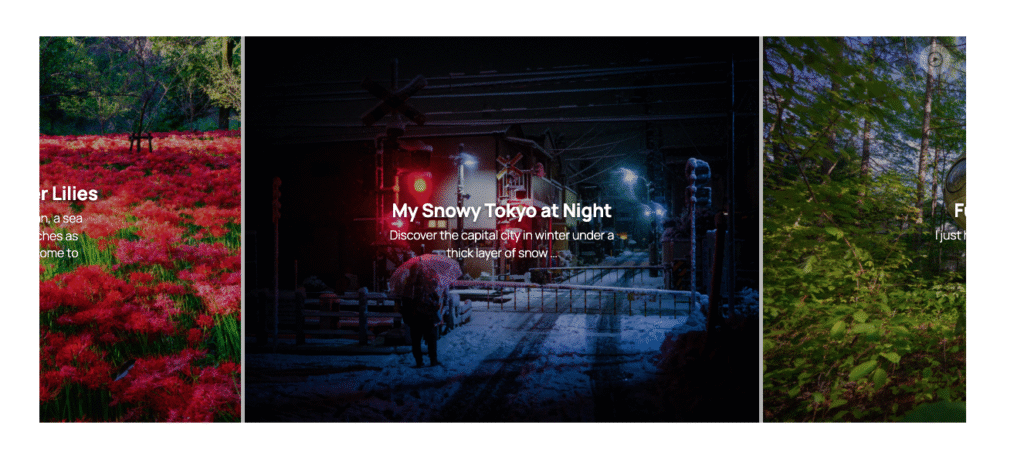
Carousel
Parameter
Description
gutter
Space between slides
image_height
Image height in pixels
arrow_nav_enabled
Show arrow navigation
dot_nav_enabled
Show dot navigation
keep-aspect-ratio
Maintain image aspect ratio
Map
Parameter
Description
gutter
Space between elements
map_height
Map height in pixels
Collections
You can group your galleries into collections, which act as galleries of galleries. When you click a gallery thumbnail inside a collection, it opens that specific gallery. You can then navigate back to the main collection view to browse the others.
Layouts
Menu
The Menu layout displays the first gallery by default and adds a header menu bar that your users can use to choose between the different galleries manually.
Bento
The Bento layout creates different boxes, one for each gallery inside the collection. You can click any card to open the related gallery.
Photo Engine (Lightroom Collections)
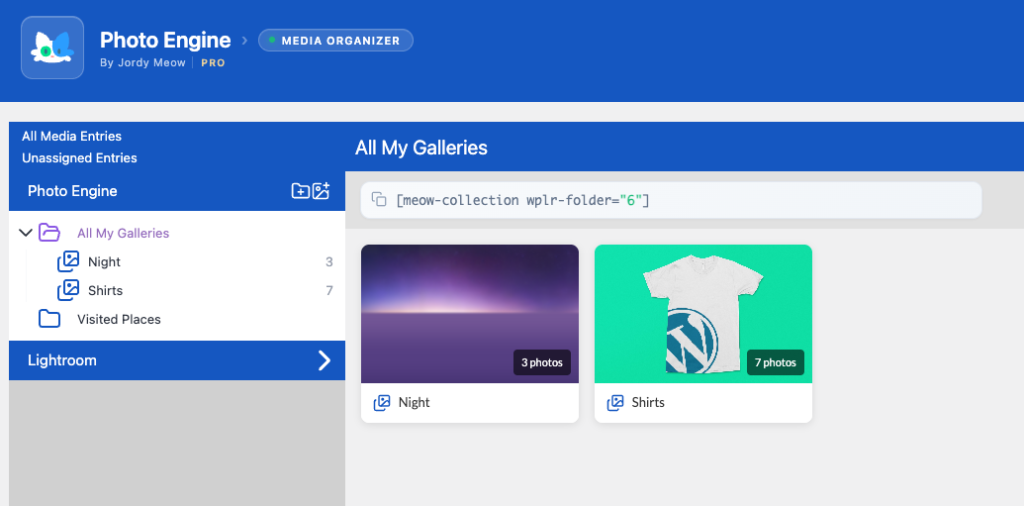
You can create collections directly from your WP/LR hierarchy without having to manually build galleries.
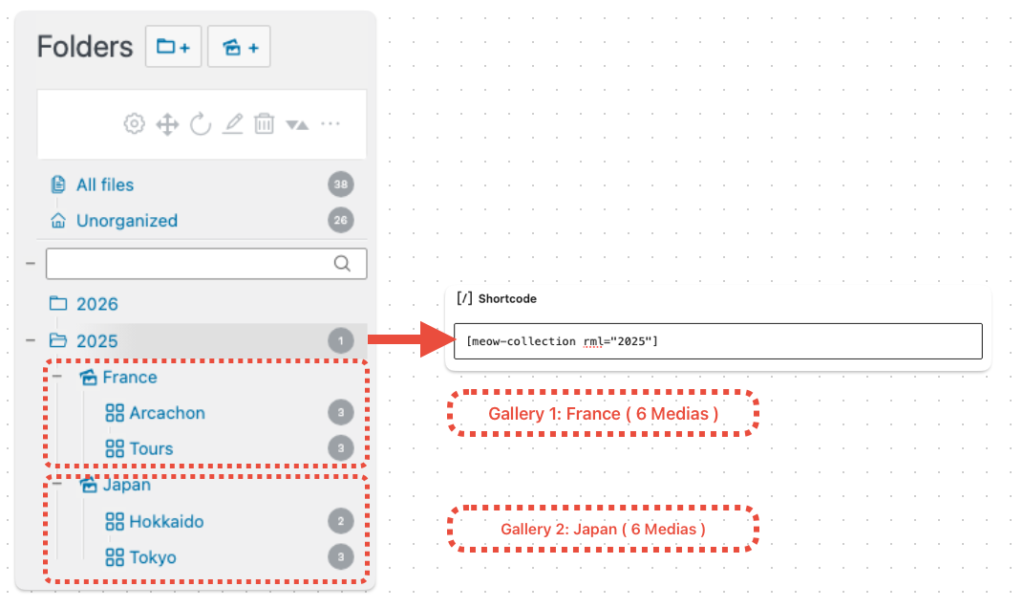
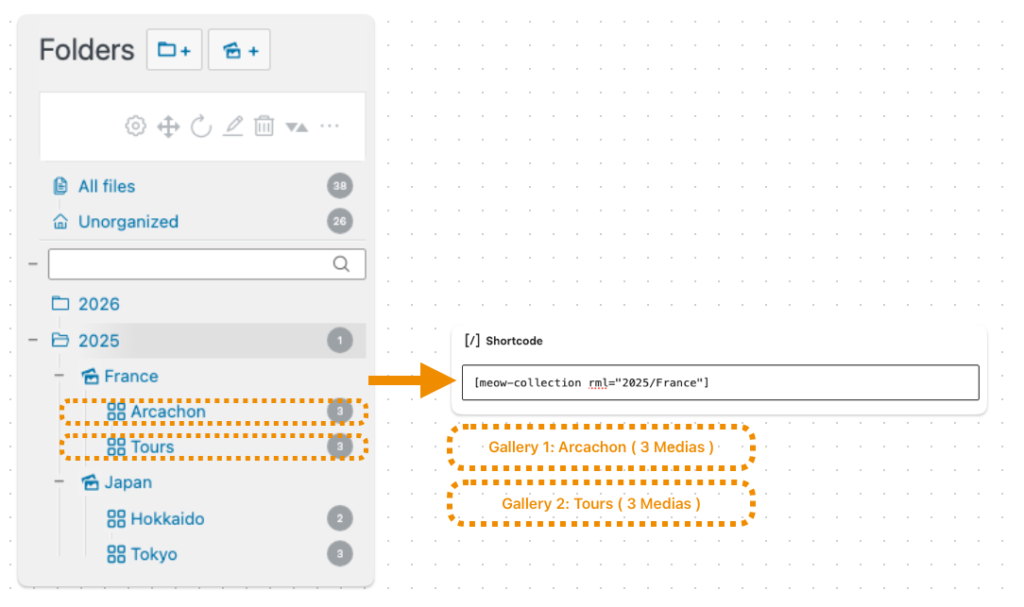
Simply copy and paste the shortcode provided by Photo Engine, and each collection in your folder structure will automatically become a gallery inside a Meow Collection.
Each collection is rendered as a gallery using your default gallery settings.
If you want to customize the galleries inside a Meow Collection directly through the shortcode, you can use any gallery shortcode attribute by prefixing it with gallery_.
This will apply the square layout to all galleries inside the collection.
Infinite Scroll
Meow Gallery can improve your site’s performance by loading media only when visitors scroll through the page. This prevents all images from being loaded at once during the initial page load, greatly improving loading speed and responsiveness.
In this setup, media files are loaded in batches of 12. As the user scrolls, new batches are automatically loaded.
You can also open the first image in the lightbox and navigate from there. The lightbox will dynamically load the next batch as you browse through the first one, keeping everything smooth and efficient.
Dynamic Sources
Instead of selecting your media files one by one, you can use dynamic galleries that automatically load images based on specific parameters.
Dynamic Mode
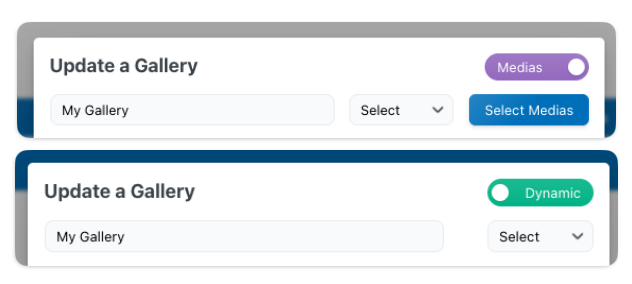
In the Gallery Manager, you can switch your gallery type from “Media” to “Dynamic.”
Once selected, you’ll be able to choose from different dynamic sources, each allowing you to automatically populate your gallery based on specific criteria. These sources are explained below.
Tags
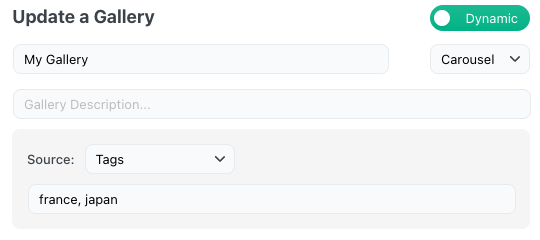
You can set your source to Tags, and the gallery will automatically fetch all media that have at least one of the specified tags.
In the example below, all images tagged with “france” or “japan” will be automatically loaded into the gallery.
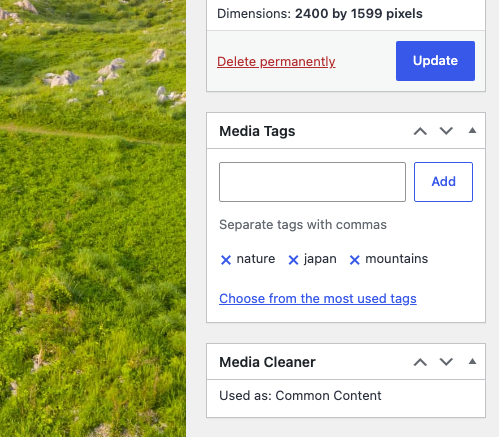
By default, WordPress does not use taxonomies for attachments. If you are not using a plugin and do not have a custom taxonomy registered, you will need to add one before you can assign tags to your media files.
By default, the most common WordPress tag taxonomies are used: ‘post_tag’, ‘media_tag’, ‘attachment_tag’ and ‘attachment_category’.
If you’d like to use tags from a custom taxonomy or a third-party plugin, you can use the following filter:
mgl_tags_taxonomies( $taxonomies_to_try )
$taxonomies_to_try should be an array of taxonomies that the gallery will check when fetching tagged media.
You can register tags for attachments using a simple snippet, as shown below:
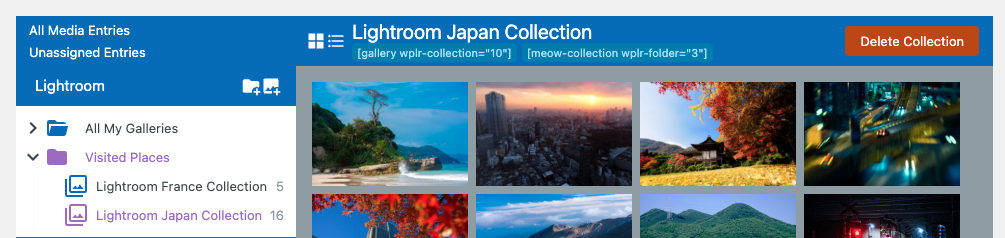
You can use media directly from your Lightroom collections if you’re using WP/LR Sync (Photo Engine), since this plugin is directly compatible with Meow Gallery. Each of your Lightroom collections will have an ID that you can reference in a Collection or Gallery to display on your page. When your collection is updated in Lightroom and synced with WordPress, your gallery on your posts will automatically be updated with that content as well!
Real Media Library
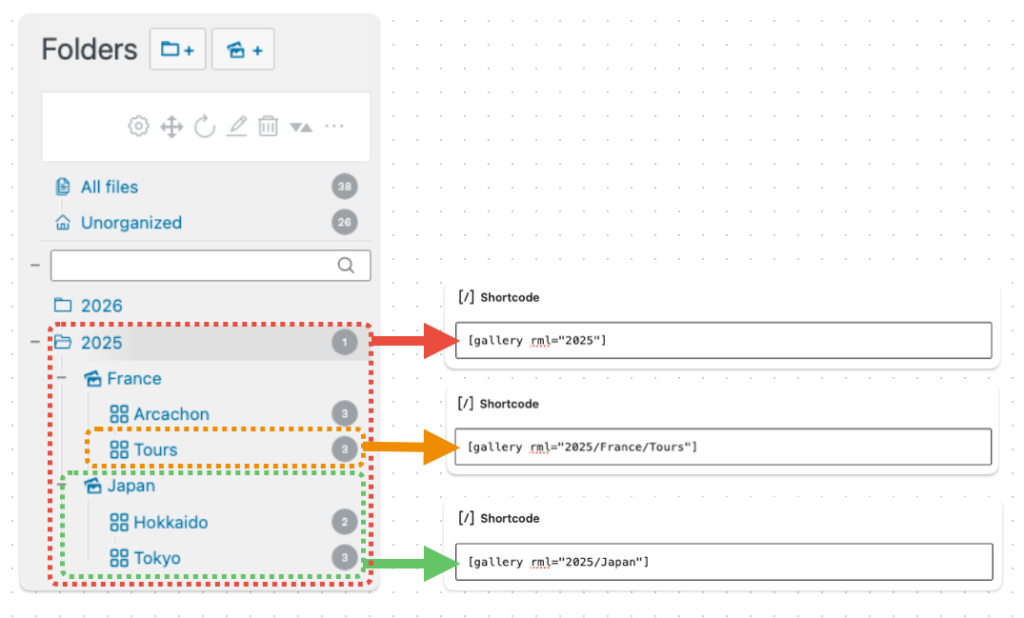
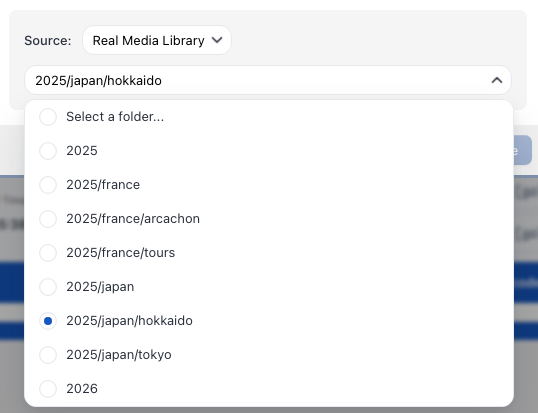
If you’re using Real Media Library, Meow Gallery can automatically convert your folder, collection, or gallery structure into WordPress galleries.
You can simply reference the path of a folder in a gallery shortcode, and Meow Gallery will automatically include all of the media contained in that folder and its chilren.
You don’t have to enter the folder path manually. You can also use the Gallery Manager and select the Dynamic gallery type with Real Media Library, which will automatically configure everything for you.
This is also compatible with Meow Collections.
If you provide the path to a folder, each subcollection will automatically become a gallery within the collection.
If you provide the path to a collection, each of its gallery data folders will automatically become a gallery within that collection.
Posts attachments
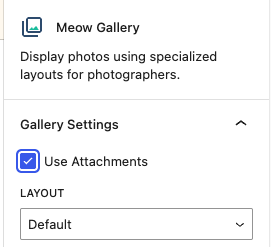
Meow Gallery can automatically create a gallery based on the media attached to the current post.
You can enable this behavior either by using the attachments parameter in the shortcode or by enabling it directly in the block settings.
[gallery attachments="true"]
You can enable this by default on empty galleries by going to the plugin settings and turning on the “Use Attachments on Empty” option.
Shortcode Override
If you have some technical knowledge, you can do fantastic things by overriding attributes of the gallery. For instance, you can create your own attribute like “keyword”, and your gallery will always show media that match that keyword. You can also add a limit attribute to display only the latest X items you’re interested in.